


Meet AWS Quick: the AI agent that actually does the work
AWS Quick is Amazon's answer to a problem nearly every business user knows: AI tools that can answer questions, but can't take action. AWS Quick is different. It's an agentic AI platform built to automate multi-step workflows across your entire tech stack, without writing a single line of code.
The integration problem AI hasn't solved... until now
Most AI assistants are impressive in a demo. Ask them to summarize a document, generate a draft, or answer a question, and they perform well. But try connecting them to your SharePoint, your Slack workspace, your internal databases, and you hit a wall.
AWS Quick was built specifically to solve that problem. It pulls from corporate data sources and public platforms in a single environment, and instead of stopping at a text response, it pushes data into the tools your team already uses.
That shift from "AI that informs" to "AI that acts" is what makes Quick worth paying attention to.
What AWS Quick actually does
Most AI assistants can summarize text or answer questions, but AWS Quick is built to do the heavy lifting in your daily workflows.
-
Universal connectivity: Easily link your public data with corporate sources, pulling seamlessly from platforms like SharePoint, Slack, and your internal wiki.
-
Zero code required: You don't need an IT degree to use it. Business users can automate daily tasks completely code-free.
-
Action-oriented output: Quick doesn't just give you a text response; it can actively push your data into the tools you already use, like dropping a generated report directly into Microsoft Excel.
The AWS Quick ecosystem: Tools built for you
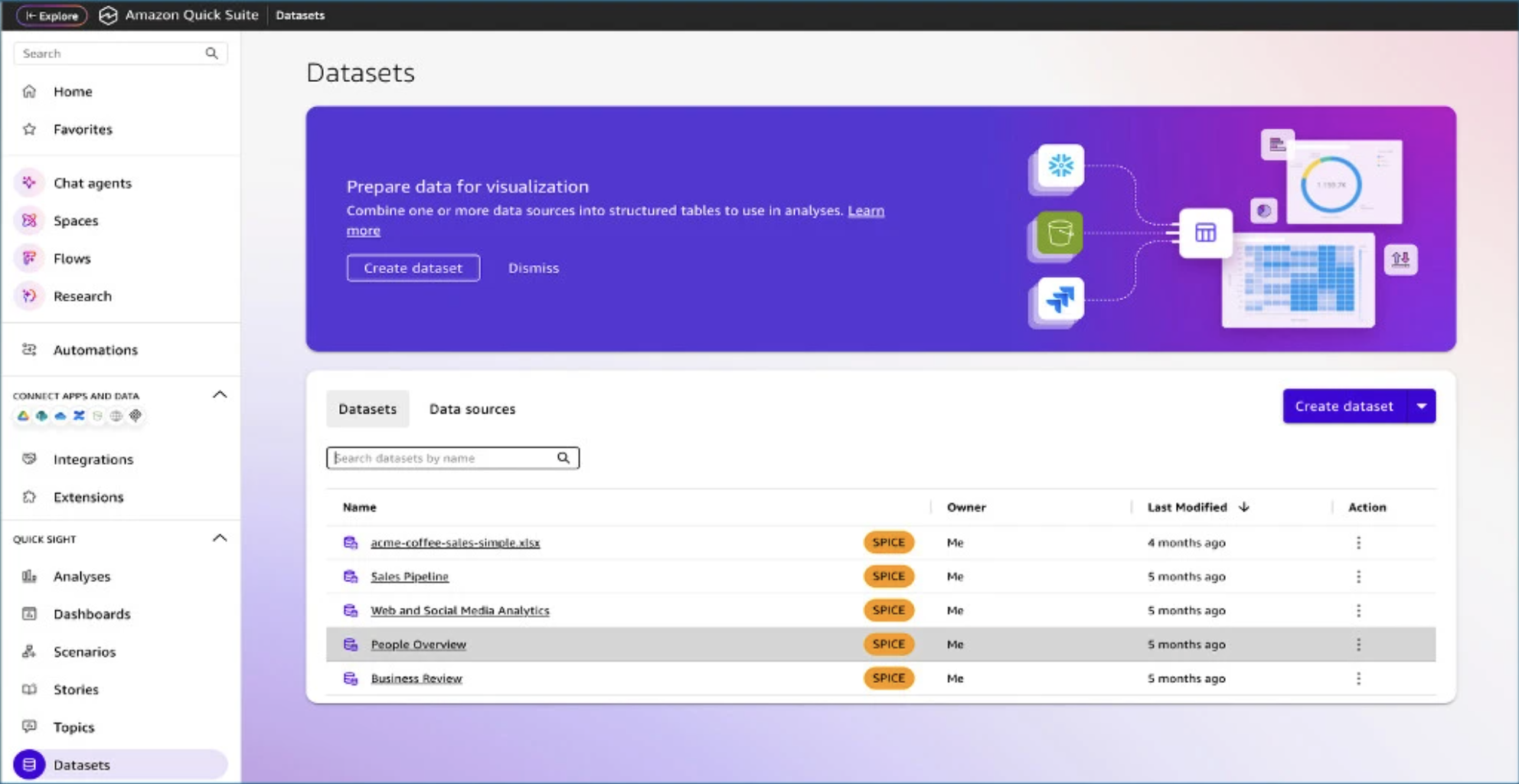
Quick is organized around a suite of integrated features, each designed to remove a specific category of manual work.
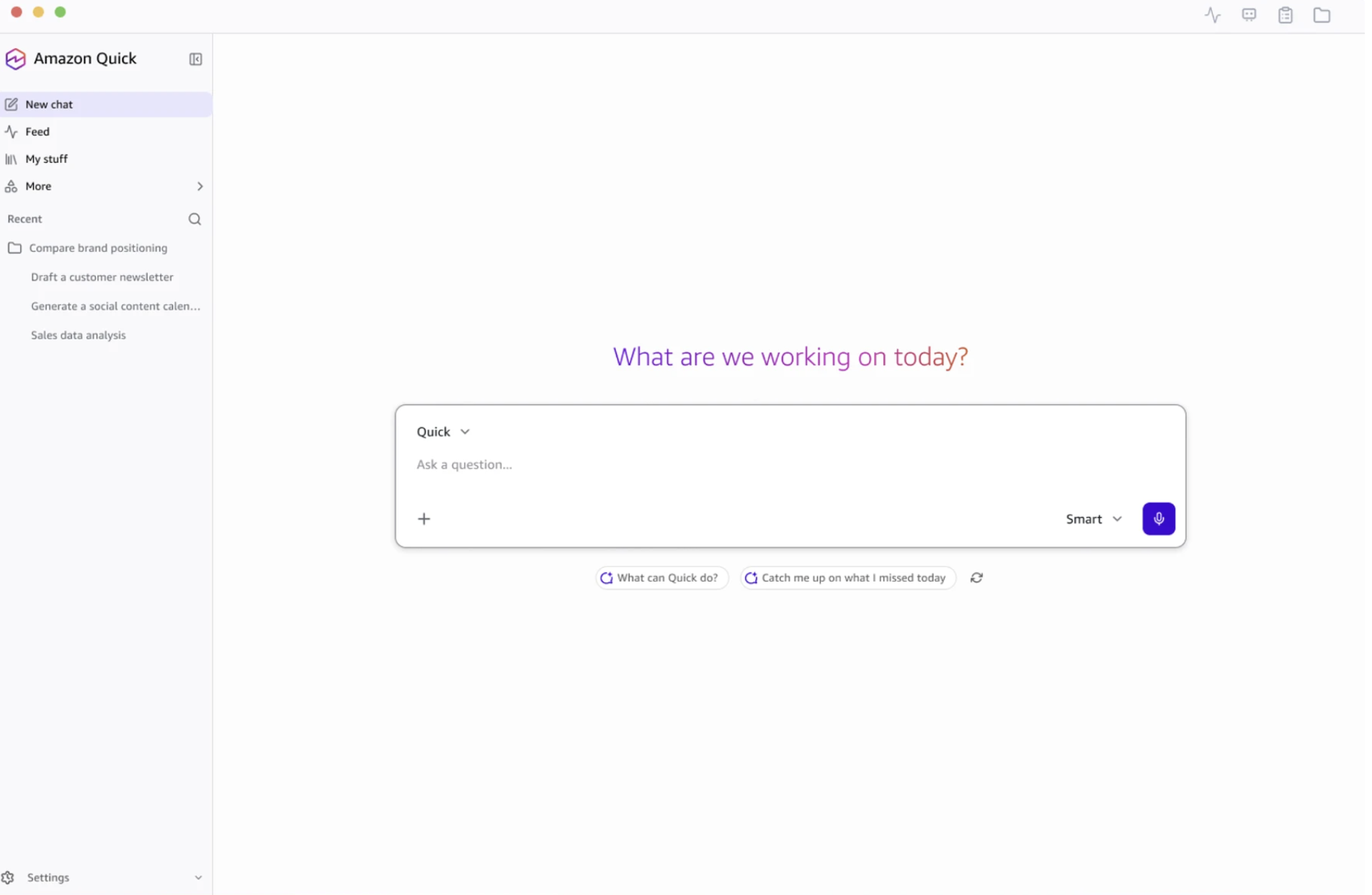
- Spaces function as a shared command center for your team. You connect your data sources (Slack, SharePoint, wikis, databases) and organize everything into a single customizable hub. Instead of switching between tools, your team works from one place.
- Deep Research goes beyond a standard search. It combines your internal enterprise data with trusted public sources and produces structured, fully cited reports in minutes. Think of it as a senior analyst who never sleeps and never skips the footnotes.
- QuickSight brings business intelligence to non-technical users. Ask for a chart in plain English, and the tool pulls from your live database and builds it. No SQL required, no waiting for a data analyst to free up.
- QuickFlows is where repetitive admin work disappears. You describe what you want automated in natural language, and Quick maps out the workflow and executes it on a schedule.
- QuickApps lets business users build lightweight custom applications tailored to their exact needs, again without development resources.
- Native desktop and mobile app connects to local files, your calendar, and your communications without opening a browser. The more you use it, the more context it builds.
Key benefits:
-
Automated action: It goes beyond chatting to autonomously execute multi-step workflows. If a metric drops, it can automatically pull a report, draft an email, and log a Jira ticket without needing step-by-step prompts.
-
Integrated Business Intelligence: It merges traditional BI with AI. You can query live databases using natural language and instantly generate real-time, interactive charts right in the chat.
-
Vendor-agnostic: It isn't locked into a specific office suite (like Microsoft or Google). Using open protocols, it connects seamlessly across your entire varied tech stack, including Salesforce, Slack, and Snowflake.
-
Native AWS security: It strictly enforces your existing AWS Identity and Access Management permissions, ensuring users only see what they have clearance for. Plus, it guarantees your corporate data is never used to train external models.
-
Collaborative "spaces": Teams can build shared, custom AI environments loaded with specific project context, rather than relying on siloed, individual chat histories.
How AWS Quick compares to the competition
Not all AI tools are built for the same job. Here's how the main players stack up.
AWS Quick: an agentic AI platform designed to execute multi-step workflows across your entire tech stack, both frontend apps and backend databases, without being locked into one vendor's office suite. Vendor-agnostic by design, it connects across Salesforce, Slack, Snowflake and your AWS infrastructure using open protocols, while strictly enforcing your existing IAM permissions. Your corporate data is never used to train external models.
Microsoft Copilot and Google Gemini: deeply embedded in their respective ecosystems (M365 and Google Workspace), excelling at front-end tasks like summarizing emails, drafting documents, and building presentations. If your team lives entirely in one of those suites, they cover a lot of ground. Step outside them, and you feel the limits quickly.
Atlassian Rovo: highly specialized for knowledge discovery and task management within the Atlassian ecosystem (Jira, Confluence) and connected SaaS tools. Powerful in that context, limited outside it.
Claude by Anthropic: a standalone, highly capable reasoning engine. You can build powerful workflows around it via API, but out of the box it's primarily a conversational interface rather than a full-stack workflow automation platform.
The pattern is clear. Most tools go deep in one ecosystem. AWS Quick goes wide across all of them.
Pricing at a glance
Quick Suite offers four tiers:
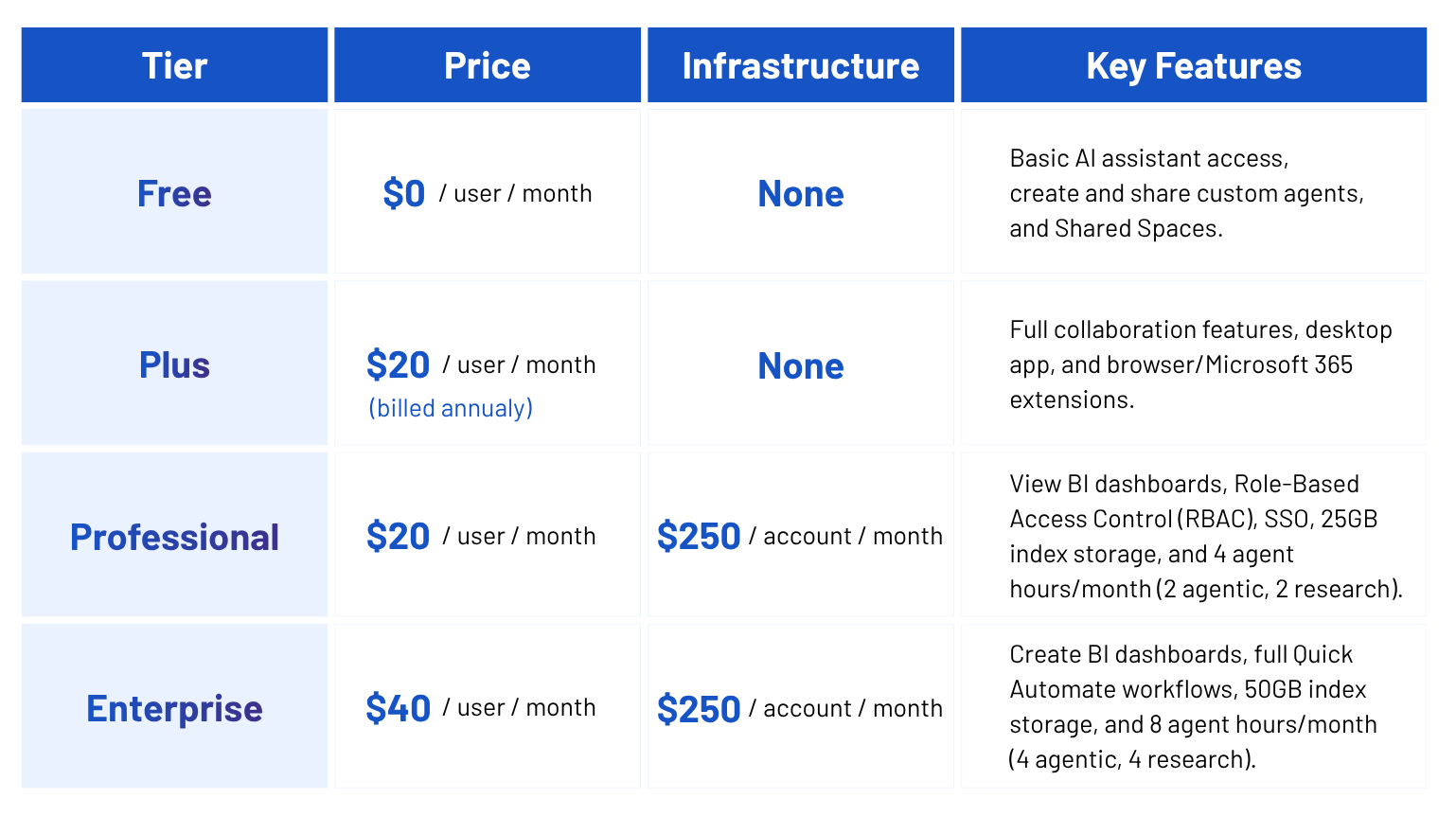 Full pricing details are available at aws.amazon.com/quick/pricing.
The technical blueprint: What you need to deploy Amazon Quick
1. Foundational account setup
-
AWS Account: You must have an active AWS account to host the environment.
-
Quick Suite Subscription: While basic features may be accessible, building custom action connectors, connecting external APIs, or executing advanced workflows generally requires a Professional ($20/user/month) or Enterprise ($40/user/month) subscription.
2. Identity and access management (IAM)
Because Quick Suite executes actions across your infrastructure, identity management is a critical first step:
-
IAM identity center: This must be enabled to manage user identities and access, whether you manage users directly in AWS or federate them through your enterprise Identity Provider (IdP).
-
Execution roles: You must create specific IAM roles that Amazon Quick can assume to call other AWS services on your behalf. This requires setting up a trust policy granting the sts:AssumeRole permission to quicksight.amazonaws.com.
3. Data infrastructure
To leverage Quick's research and business intelligence capabilities, you need to point it at your corporate data:
-
Data sources: You will need properly configured data stores, such as Amazon S3 buckets for unstructured documents (PDFs, emails) or databases like Snowflake and Amazon Redshift for structured data.
-
SPICE capacity: If you are using Quick's business intelligence tools to generate fast, interactive dashboards, you must provision SPICE (Super-fast, Parallel, In-memory Calculation Engine) capacity to cache your data.
4. Integration and security components
If you plan to use Quick Flows or Quick Automate to execute tasks in external applications (like Google Workspace, Salesforce, or Jira), your technical team will need to manage external connections:
-
AWS secrets manager: You must use this service to securely store API keys, JSON private keys, and OAuth credentials for any third-party integrations you build.
-
Authentication logic: You will need to configure authentication based on the action. This means setting up User Authentication (3-Legged OAuth) so agents perform actions strictly as the logged-in user, or Service Authentication (2-Legged OAuth) for background automations running on system-level credentials.
-
https://docs.aws.amazon.com/quick/latest/userguide/getting-started.html
Real-world scenario:
Meet Sarah, a Product Manager who just launched a new mobile app feature. Her Friday afternoons used to be a nightmare: she would spend hours manually digging through the #app-feedback Slack channel, scrolling through customer support emails, copy-pasting text, and trying to format it all into a massive tracking spreadsheet.
Here is exactly how Sarah uses Amazon Quick to automate this entire process without writing a single line of code.
Step 1: Setting up the “Product Feedback" space
First, Sarah creates a dedicated Space in Amazon Quick called Q3 Feature Launch. This acts as her central hub.
-
She links her corporate data sources by selecting her team's Slack workspace and her Microsoft Exchange/Outlook email.
-
She directs the Space to specifically monitor the #app-feedback channel and any emails containing the phrase "Feature Launch Feedback."
Step 2: Creating a QuickFlow with natural language
Instead of begging the engineering team to build a complex API integration, Sarah opens QuickFlows and simply types out her instructions in plain English:
"Every Friday at 3:00 PM, scan the #app-feedback Slack channel and my launch feedback folder in Outlook. Extract all bug reports and feature requests, categorize them by 'UI Issue', 'Performance', or 'Feature Request', and push the summarized rows into my 'Product_Feedback_2026' Excel sheet on OneDrive."
QuickFlows processes her prompt, maps out the necessary steps using agentic AI, and sets the automated loop into motion.
Step 3: Pushing clean data to Excel
Every Friday afternoon, the AI goes to work. It extracts unstructured chat threads and messy email blocks, uses semantic understanding to clean them up, and outputs them into a highly organized, structured format right into her spreadsheet.
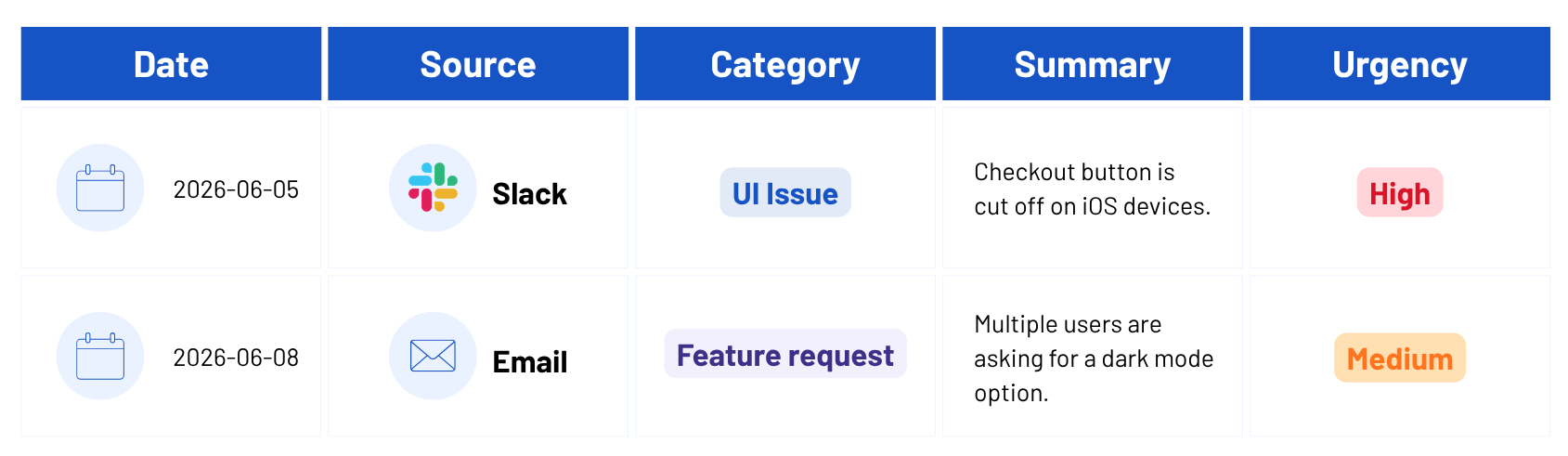
Sarah doesn’t have to lift a finger, the spreadsheet updates itself on autopilot.
Step 4: Leveling up with QuickSight and QuickApps
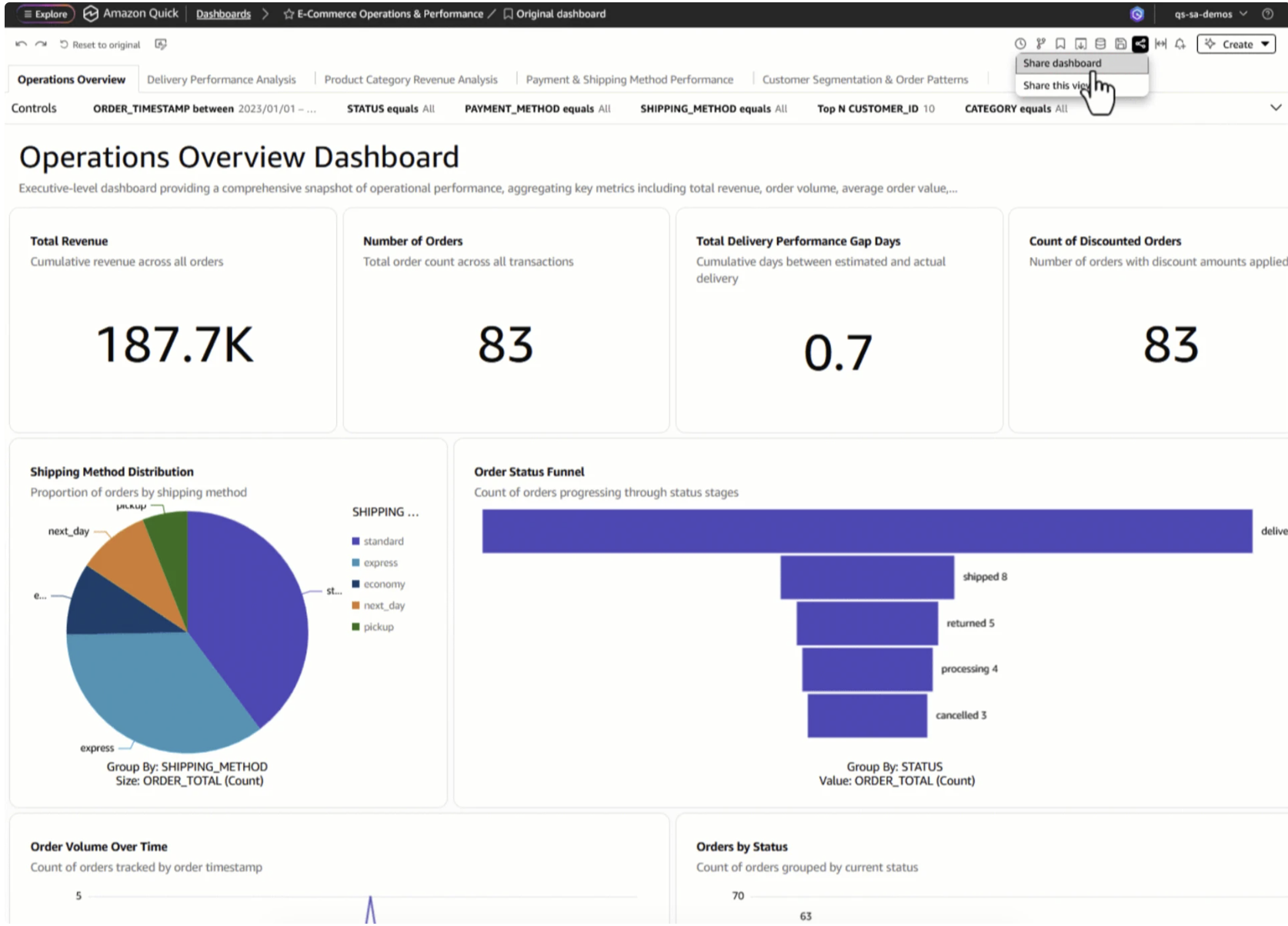
Because the Amazon Quick suite is fully integrated, Sarah can easily leverage her newly automated data:
-
Instant visualization: She opens QuickSight within her Space and asks: "Show me a bar chart of our most common feedback categories this week." Instantly, she has a visual breakdown ready to share with her engineering lead.
-
Custom mini-app: Using QuickApps, she converts that spreadsheet into a clean, internal app interface. Her developers can log in and check off bugs as "Resolved," which automatically updates the master dataset.
The Result
Sarah goes from spending three hours copy-pasting messy text to spending zero seconds on data gathering. She walks into her Monday morning sprint planning with a fully updated, prioritized feedback dashboard ready to guide the team's next move.
Three hours of copy-pasting, every single week. That's 150 hours a year. What would your team do with that time back?
Let's find out together.